Inefficient Users
Overview
The Inefficient Users appstore app helps administrators and data platform teams identify users whose workloads are consuming cluster resources inefficiently. By surfacing the most wasteful users and their top inefficient workloads, this app enables organizations to target optimization efforts, reduce resource waste, and improve overall platform performance.
Key features
Wasteful and Heavy Users Tabs: Switch between identifying inefficient users and those who are heavy consumers of resources.
Top Inefficient Workloads: View detailed lists of inefficient jobs or workloads for each user, including direct links to workload details.
Platform Efficiency Impact: Quantify the percentage of allocated memory wasted for each user, making it easy to prioritize optimization.
Use case
A platform administrator notices that cluster performance has degraded and suspects some users are running inefficient jobs. Using the Inefficient Users app, the administrator sets the analysis date range to the past week, reviews the Wasteful Users tab, and identifies several users with high memory waste percentages. By examining the top inefficient workloads for each user, the administrator shares targeted recommendations with those users and schedules follow-up training to address recurring inefficiencies. As a result, cluster resource usage improves and overall job throughput increases.
Accessing the app
Refer to Installing and accessing the apps.
Using the app
Use the Inefficient Users app to configure your data source, select a date range for analysis, and review dashboards that highlight the most wasteful users and their inefficient workloads. This enables you to quickly pinpoint resource waste and take corrective action.
Steps to Configure
Go to the Settings tab.
Enter the path to the required .db file in the Enter Path field.
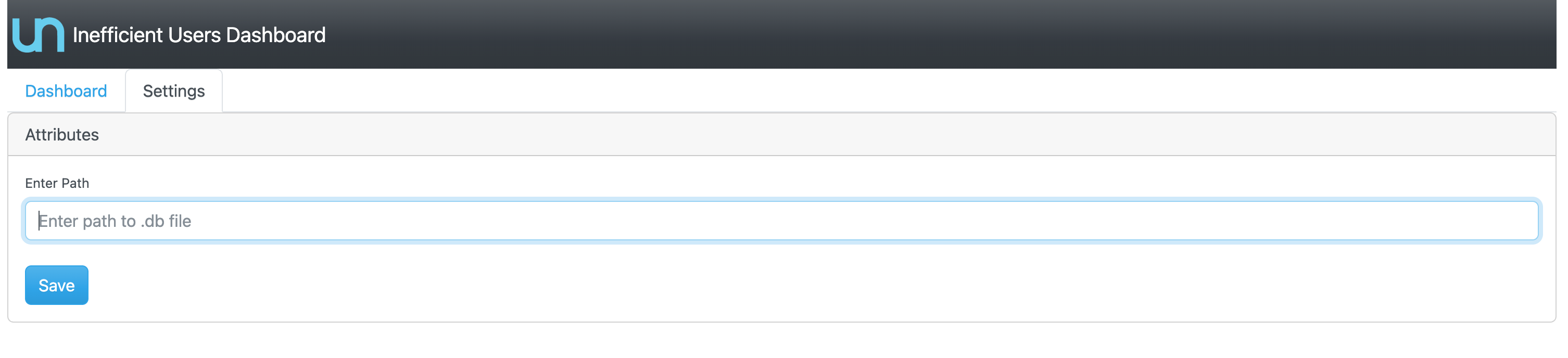
Click Save to confirm the data source.
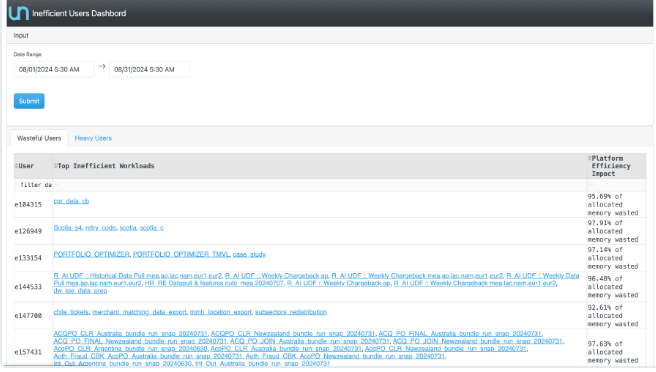
On the Dashboard tab, use the Date Range selectors to specify the analysis window.
Click Submit to refresh the dashboard with data from the selected period
Dashboard analysis
By following these steps, administrators can efficiently monitor, investigate, and address inefficient resource usage across their clusters, leading to better platform health and cost savings.
Wasteful Users Tab
Displays a table of users with the highest percentage of allocated memory wasted. Each row lists the user, their top inefficient workloads, with clickable links for details, and the platform efficiency impact, for example: 95.09% of allocated memory wasted.
Heavy Users Tab
Switch to this tab to identify users who are the largest consumers of resources, regardless of efficiency.
Top Inefficient Workloads
For each user, review the list of jobs or workloads that are contributing most to resource waste. These are presented as clickable links for further investigation.
Platform Efficiency Impact
Use the percentage shown to prioritize which users require immediate attention. Higher percentages indicate greater waste and a stronger case for intervention.